DXF imports at the wrong size: check the scale and units
Measure the imported geometry first. Then correct the unit interpretation or source scale.
Select the complete drawing and compare its measured width and height with a known value. A matching 25.4× or 1/25.4× error suggests an inch/millimeter interpretation problem, but the ratio alone does not prove the cause. Check the source unit and DXF import settings, then reimport and measure again.
Find the ratio before changing the size
Use a dimension you know independently, such as a 100 mm-wide calibration outline. Read the receiving program’s selected-object bounds, not the document page or a cropped preview. Confirm the displayed unit and select every part that belongs to the drawing.
Divide measured width by expected width, then do the same for height. If both ratios agree, investigate uniform scale or units. If they disagree, check aspect-ratio changes, an incomplete selection or geometry altered before export.
| What you observe | First check | Do next |
|---|---|---|
| 25.4× too large, or 1/25.4× too small | Inch/mm unit interpretation | Compare source unit, header and import settings |
| 10×, 100× or 1000× with matching proportions | Drawing units or an applied scale | Ask for a known dimension and declared unit |
| Different width and height ratios | Selection or geometry distortion | Select all intended parts; inspect the source |
| Calibration correct, your file wrong | Your file’s declaration, transform or export | Re-export from a copy and compare a known feature |
Check LightBurn’s DXF import settings
Check the exporting file’s intended unit
Ask which unit the drawing coordinates represent. A DXF’s numeric value 100 is not enough to decide whether the intended width is 100 mm or 100 inches. The $INSUNITS header can declare the unit, but a declaration can be missing or wrong.
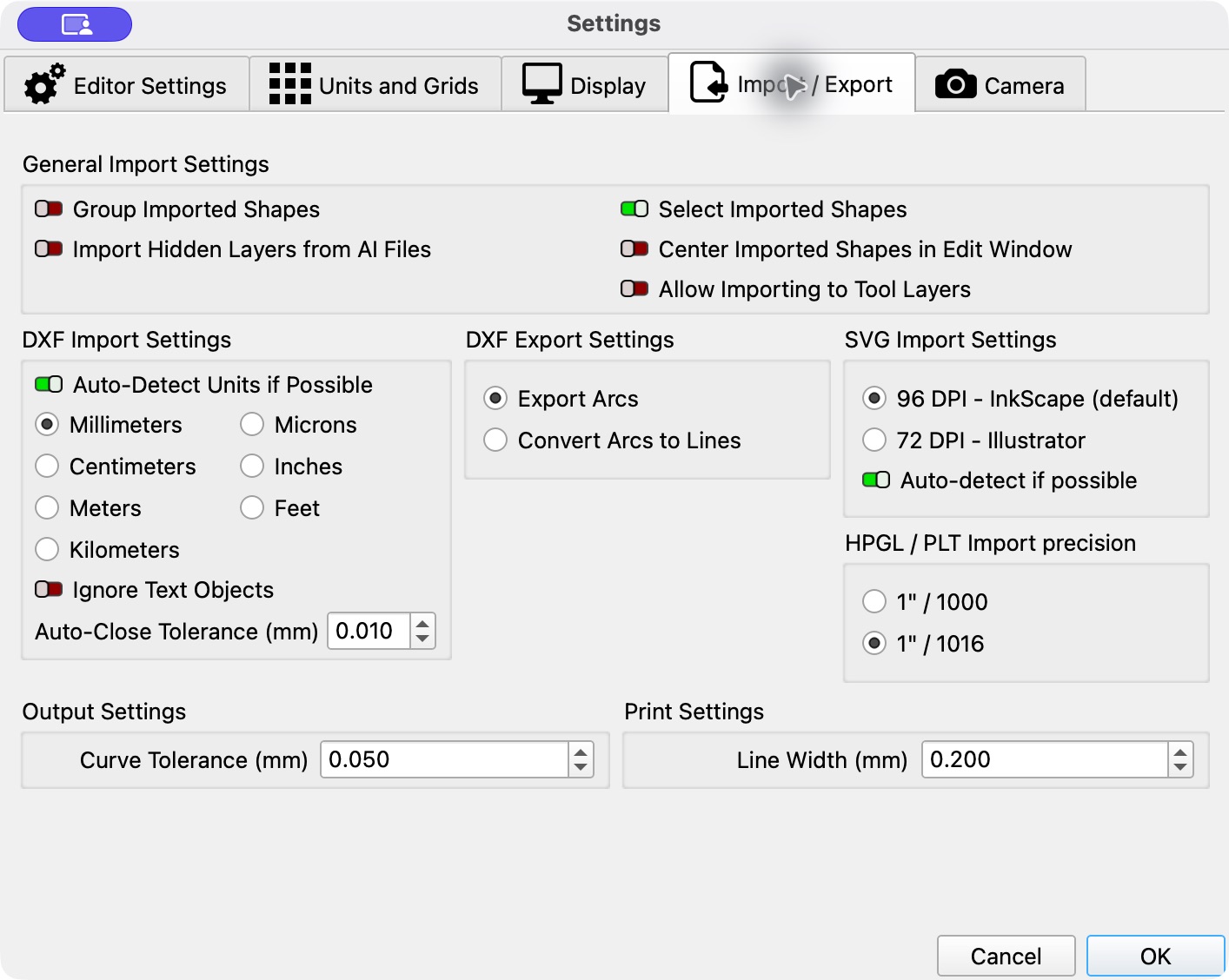
Open Settings → Import / Export
Under DXF Import Settings, LightBurn 2.1 provides Auto-Detect Units if Possible and a fallback unit. Use detection for a correctly declared file. For a unitless file, choose the fallback that matches the source drawing; do not guess from the file extension.
Correct the source and reimport
If the header is wrong, re-export with the correct source unit where possible. Import into an empty document and measure again; changing import preferences does not re-interpret geometry already in your document.
Use manual scaling only with a known dimension
If re-export is unavailable, work on a copy. A confirmed uniform error uses expected size ÷ measured size as the correction factor: 100 ÷ 2540 = 1/25.4. Keep the aspect ratio, then check another dimension, holes and placement. Never infer the physical size of an arbitrary image from this example.
Reproduced: identical coordinates, different unit labels
On 9 October 2026, LightBurn Pro 2.1.04 on macOS imported our straight-segment calibration in the built-in No Machine profile. Auto-Detect Units was on and the fallback was Millimeters; no preferences were changed. Each file was imported into an empty document state. The observed selected bounds establish width and height; no fabrication equipment was connected.
The two variants change only the unit code; coordinates and three closed polylines are identical. Reimporting the correct baseline restored 100 × 70 mm. Auto-detection cannot know that a file’s inch declaration was a mistake. The unitless result is conditional on the recorded fallback, not a reliable physical-size declaration.
| File | Declared unit | Imported width × height |
|---|---|---|
| Correct baseline | Millimeters (code 4) | 100 × 70 mm |
| Intentionally mislabeled | Inches (code 1) | 2540 × 1778 mm |
| Unitless variant | Unitless (code 0) | 100 × 70 mm with this fallback |
If size is still wrong
If the known-good baseline imports correctly, compare the problem file’s declared unit, export scale, transformed objects and supported entities with the source drawing. Fix the exporter or ask for another format with a stated reference dimension. If even the baseline is wrong, record the receiving software version and import settings before changing geometry.
For an SVG, 72/96 DPI interpretation and its width/viewBox are a separate workflow. Those settings do not explain the unit-label DXF example above. A missing hole or duplicate path is also a different geometry problem; scaling does not repair it.
Sources and recorded scope
The settings explanation follows LightBurn 2.1 documentation and DXF unit codes follow Autodesk. The reproduced dimensions come from the real 2.1.04 imports recorded here. Only these files and settings were tested, not arbitrary drawings or physical machining accuracy.