Get the outline you want
Which images work best?
Start with a clear logo, silhouette or monochrome drawing. Use JPG or PNG, up to 10 MiB and 4 million pixels. Photos, shadows and low-contrast edges may become unwanted shapes. Transparent PNG areas stay empty; partly transparent pixels are treated against white. If your artwork is white on a dark background, use Invert foreground.
How should I adjust the threshold?
The threshold decides which pixels belong to the artwork. Without inversion, a higher value includes lighter pixels and usually makes the shape thicker. A lower value keeps darker pixels and may lose thin details. After changing it, trace again and compare Original, Black & white and Overlay. With inversion enabled, the direction reverses.
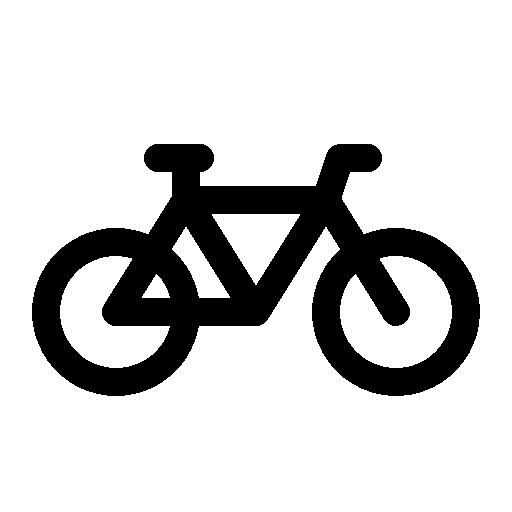
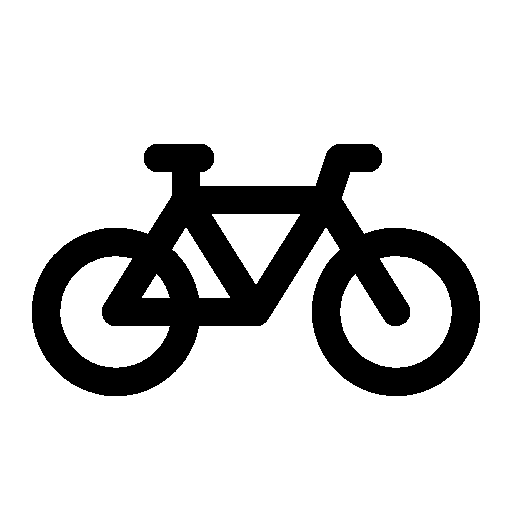
Threshold 200: lighter edge pixels join the shape; all five holes still remain in this example. Zoom in to compare the edges.
Why did a hole or small part disappear?
Check the black-and-white image first. If a hole is already filled there, lower the threshold (or raise it when inverted) until the gap returns, then trace again. If a separate small part disappears only when Remove small specks is enabled, turn removal off. This setting removes separate foreground parts within the selected pixel-area limit; it does not deliberately fill holes or repair connections. Inspect every intended hole in Filled shape and Overlay.
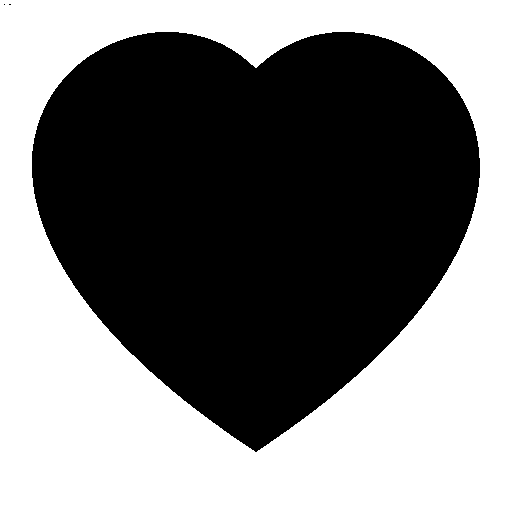
Removal off: the heart and two added specks produce three separate parts.
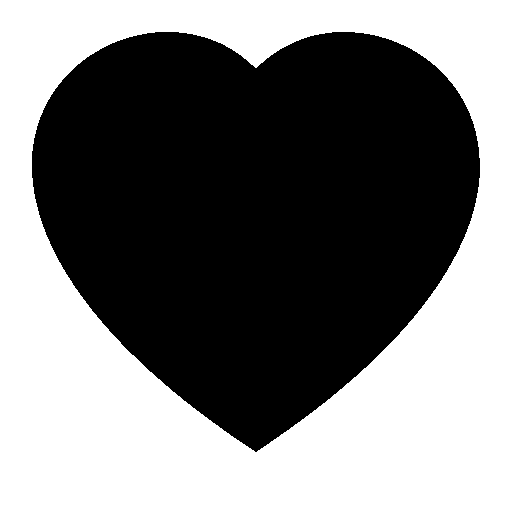
Remove up to 4 pixels: only the heart remains. Small intended parts could also be removed.
These are engineering examples based on Bootstrap Icons v1.13.1, © 2019–2024 The Bootstrap Authors, MIT license. The source images were rasterized, thresholded and traced; specks were added for the second comparison. They are not real user samples or software-import evidence. Example provenance.
Why are curves jagged?
The default outline follows pixel boundaries with straight segments. In Trace details, try Reduce nodes and trace again to replace short steps with fewer straight segments. It keeps the same size and checks the holes, separate parts and black-and-white pixel fill before using the change. If those checks fail, the original outline is kept. Compare Outline and Overlay before downloading. This does not fit smooth curves or reconstruct missing detail; a larger, sharper source image can retain more detail.
How do I choose and check the size?
Enter the intended width or height in mm or inches; the other dimension follows the proportions. The size covers the traced artwork, excluding blank image margins. Image DPI does not set the output size. Both width and height must be between 0.01 and 100,000 mm. Download, import into your target software, and measure the bounds there. For example, a file set to 100 mm wide should measure 100 mm after import; 1 inch is 25.4 mm. Check the units if the result differs.
For an SVG graphic, choose Original image · pixels to keep the source canvas and empty margins without entering a physical size. Pixel dimensions describe the drawing canvas, not a measured object. Choose a target size for cutting; DXF always requires one.
Should I download SVG or DXF?
Choose SVG for a filled shape with holes, or when your target application asks for SVG. Choose DXF when it asks for cutting outlines. Target-size exports use the same sized geometry; SVG also offers an original-pixel canvas. Neither choice smooths the outline. A self-made 100 × 70 mm calibration was imported separately as SVG and DXF in LightBurn 2.1.04 Core; see the import guide. Measure your own file and review its direction and holes before cutting. Cricut remains unverified.
What do the checks cover?
The tool checks closed contours, zero-length segments, duplicate segments and complexity. A successful check does not verify self-intersections, touching contours, material behaviour or safe machine settings. Review the filled shape and overlay yourself; a preview and download do not prove a successful import.
Technical format and processing limits
Processing runs in a browser Worker. DXF contains closed LWPOLYLINE entities in millimetres with an upward Y axis. SVG uses either the original pixel canvas or chosen millimetre dimensions, with even-odd fill. Both files are reparsed before download.
The preview stops at 100,000 boundary edges, 512 contours, 20,000 retained vertices or 30 seconds. These are protective limits, not a performance guarantee.