LightBurn shapes not closed or filling: a diagnostic checklist
Check geometry, display style and layer state in a fixed order before editing a shape that looks open or refuses to fill.
Separate the visible symptom from the cause
An unfilled-looking shape may be an open path, a closed path shown with an outline-only style, a hidden or locked layer, or overlapping geometry that creates an unexpected fill. This checklist is version-agnostic and does not claim a LightBurn reproduction.
Use a small before-and-after geometry fixture
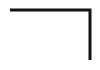
These editor-agnostic SVGs isolate the path question: the before file has an open three-segment path, while the after file closes the same rectangle and adds a fill. They demonstrate a geometry difference only; they are not LightBurn screenshots or machining evidence.

Diagnose in five passes
- Select the exact object Select one suspect shape and isolate it from nearby objects. Confirm which layer and object are active before changing nodes.
- Inspect endpoints Zoom to the apparent join and inspect whether the first and last nodes meet. A gap means the path is open even when the preview looks almost closed.
- Check fill and line style Confirm that the object has a visible fill and that the current display mode is not hiding it. A closed path can still look empty when its style is outline-only.
- Check layer state Verify the active layer is visible, editable and the intended output layer. Hidden, template or locked states can make a valid path appear missing.
- Test overlaps separately Move nearby duplicates or overlapping paths aside in a copy. Overlap, winding and fill rules can change the visible result without changing whether one path is closed.
Separate duplicate lines from a normal outline
Two visible boundaries are expected when a thick filled stroke has been traced as an outline. Treat a line as a duplicate only after checking whether both paths occupy the same coordinates and whether the source intentionally has two edges.
- Same coordinates and same shape: inspect for a duplicate in a copy before deleting anything.
- Parallel inner and outer boundaries around a thick stroke: this is usually a normal outline; see the outline-versus-centerline guide.
- Crossing or stacked shapes: isolate layers and test fill direction before changing winding or deleting paths.
- A missing fill with one open endpoint: fix closure first; deleting a second-looking line can hide the real cause.
Apply the smallest justified correction
Record the original file first, then change one cause at a time and reopen or reselect the result.
- Close a verified endpoint gap only when the intended join is clear.
- Restore a fill or layer visibility setting when geometry is already correct.
- Separate or delete a confirmed duplicate in a copy; do not remove a legitimate double outline by appearance alone.
- Recheck dimensions, holes and direction after any topology edit.
Keep the evidence boundary explicit
This checklist does not verify a specific LightBurn release, arbitrary file, machine profile or machining result. Parser acceptance and a closed path do not prove that a target editor will fill or cut it as intended.