Convert JPG to DXF for AutoCAD: Trace, Size and Check
Converting JPG to DXF for AutoCAD works when the JPG is a monochrome outline and you set the intended physical size before export. Attach Image in AutoCAD references pixels and scales the image reference; it does not turn pixels into vector geometry. TraceDXF handles one PNG/JPG/JPEG at a time in the browser, traces boundary paths, and lets you supply the artwork width so the DXF carries millimetres rather than unknown pixels.
The direct workflow is: confirm the image is a black-on-white outline, trace the boundary, set the artwork width, export DXF, open it from AutoCAD 2025, then inspect entity type, closure, holes or separate islands, and measure endpoints. The engineering package below was verified with parsers and coordinate checks; it was not tested in native AutoCAD, in a LightBurn import, or on a machine, so no safety, compatibility or precision guarantee is implied.
Raster reference versus vector DXF
Attaching a raster image places a pixel reference in the drawing. Insertion, scale and rotation affect that reference only; the pixels stay pixels. A DXF, by contrast, carries vector paths such as polylines that can be trimmed, dimensioned, or sent to a cutter. If your goal is editable geometry rather than a traced background, produce the DXF from an outline and use the image only as a source.
TraceDXF traces monochrome boundaries and exports both SVG and DXF. It does not upload files to a server and does not use AI, draw centerlines, recover multicolor drawings, or automatically rebuild engineering dimensions.
Choose an appropriate outline input
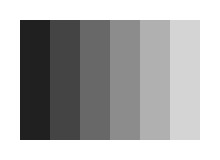
Use a high-contrast black-and-white source with clean outer edges and intentional holes. Grayscale or tonal photographs are not suitable contour input, because a single threshold merges bands into one black region and loses tone variation. If the source has internal islands, expect them as separate closed paths rather than filled regions.
These previews are engineering illustrations of the source pixels and the traced contour result, not AutoCAD attachment or import screenshots.


Set physical size and export DXF
State the artwork width in millimetres before export. The tool computes height from the traced pixel bounds, so the DXF coordinates reflect the intended physical size rather than raw pixels. The example below sets a 180 by 120 px artwork width to 100 mm, giving height 200/3 mm, or about 66.67 mm.
Export AC1015 DXF with INSUNITS set to 4, the millimetre drawing-unit code. INSUNITS tags the file; it does not by itself rescale existing coordinate geometry. The SVG y-down to DXF y-up transform preserves appearance without reflection.
Open and inspect the DXF in AutoCAD 2025
Use Open, choose DXF as the file type, select your file, and choose Open. This opens the DXF as its own drawing rather than inserting it into a current drawing. Once the drawing loads, inspect what you see.
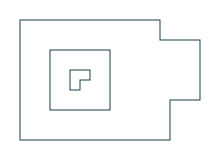
- Entity type: confirm the paths are the vector type you expect. For this known fixture, the DXF should contain three closed LWPOLYLINE entities. A different valid DXF may legitimately contain blocks or other entity types, so do not mark it invalid solely for that reason.
- Closure: verify each contour closes on itself and there are no loose gaps.
- Holes and orientation: distinguish outer boundary, holes, and any separate islands by walking around each loop.
- Loose island caveat: a nested separate L-shaped island is not connected to the outer stencil. Keep it as a loose part or join it deliberately; do not assume it is retained by the stencil.
Measure endpoints and diagnose units
Run DIST or DI with endpoint object snaps to confirm key dimensions. Because the DXF was opened as its own drawing, these measurements read the coordinate geometry in the declared intended millimetres. Use UNITS to set displayed precision and unit style.
If the measured size does not match the stated artwork width, check the chosen export artwork width and the exported coordinates before handoff. INSUNITS only affects later insertion or attachment scaling; changing it does not resize the existing geometry already in the opened drawing.
Verified sample package
The self-made CC0 engineering example uses a 220 by 160 px opaque PNG traced at threshold 128, invert false, denoise 0, reduceNodes false. It exports three closed contours: an 8-vertex outer loop with a right-hand stepped extension, a 4-vertex rectangular hole, and a 6-vertex nested separate L-shaped island. The DXF has three closed LWPOLYLINE entities, 18 vertices, on layer 0. The source and binary are identical because the source is already binary. Parser checks cover coordinates; native AutoCAD import, LightBurn import, and self-intersection were not checked.
Download the full handoff package or individual files:
For contrast, the grayscale counterexample keeps tonal bands 32, 68 and 104 as one black region at threshold 128 and loses the other bands. It is not a contour cutting instruction.



Sources and next steps
Official AutoCAD 2025 references:
Continue with the matching branch: