Convert text to paths in Inkscape for SVG and DXF
Finish the wording and font first, keep an editable original, then turn each letter into geometry. Check the counters inside B, 8 and O before handing the file to a path-based workflow.
Select the text and choose Path → Object to Path. This replaces font-dependent text with glyph outlines. Save a separate path copy: the converted result no longer lets you change the wording or font as text.
Choose glyph outlines, not text on a baseline
An SVG text element stores characters and font choices; the receiving system must resolve the font. Glyph paths store the letter boundaries themselves. Outline conversion is useful when the recipient requires geometry or must preserve your chosen letter shapes without installing the font.
Text → Put on Path is a different operation: it places editable text along a curve. It does not by itself remove the font dependency. Object to Path creates glyph boundaries, not a single centerline through each letter and not editable DXF TEXT entities.
Prepare and convert in five steps
Save the editable original
Save the original SVG under its own name. Work on a duplicate document so future spelling, font or spacing changes can start from editable text.
Confirm font, wording and layout
Select the intended text with the Text tool. Check the full string, installed font, weight, spacing and alignment before conversion. A substituted font will produce substituted outlines; conversion cannot recover a missing typeface.
Convert the selected text
Use the Selector to select the text object, then choose Path → Object to Path. Select only the intended text, rather than the whole drawing. The commands here follow official Inkscape documentation; they were not reproduced in a locally installed version for this guide.
Inspect nodes and letter holes
Use the Node tool to confirm that the letters contain path nodes. Inspect the counters in letters such as B, 8 and O. Keep inner contours with their outer glyph; breaking a compound path apart can make the holes appear filled. Do not assume a fixed group or path count for every Inkscape version and font.
Save the path copy and check dimensions
Save a separate SVG and reopen it. Compare the complete lettering width and height with your original, verify that no unwanted text remains, and check the holes again. For DXF, continue with a supported export workflow and inspect the resulting entities and units.
Download a font-dependent input and a path-only reference
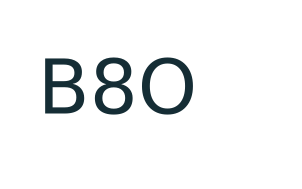
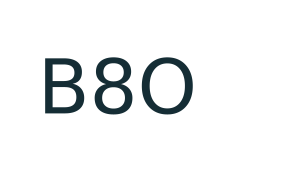
The 2026-10-14 engineering fixture uses DejaVu Sans, 20 mm font size, the string B8O and an 80 × 50 mm page. The input contains one text element. The reference contains three path elements, eight closed contours and five holes; geometry bounds are 39.102 × 15.127 mm. The page size and lettering bounds are different measurements.
These files were generated from the licensed local font with Python 3.12.14 and ReportLab 4.4.9, not exported by Inkscape. Each quadratic segment was sampled into 16 straight segments, with a calculated chord-deviation bound below 0.00235 mm. The input preview depends on the installed font; the path reference does not. The record retains hashes and provenance.
Continue to the right SVG or DXF workflow
Path conversion prepares the letters but does not choose your file format. Use the SVG→DXF tool only when the saved SVG fits its strict subset. This straight-segment reference is a suitable subset example; ordinary font outlines can contain Bézier commands that require preparation in Inkscape. Do not silently substitute a bitmap upload for an existing SVG.
Follow the Inkscape SVG→DXF guide for software export choices, then inspect the resulting DXF with the checker when its entities fit the supported 2D subset. Letter holes and parser acceptance do not establish target-software import or machine results for your file.
Common preparation questions
Why does the saved SVG still need my font?
Saving an SVG does not automatically outline its text. Select the actual text object and use Object to Path, then inspect the saved copy for glyph paths and remaining text. Text → Put on Path only arranges the text along a curve.
Can I edit the wording after conversion?
The glyph paths can be edited as geometry, but changing the word or typeface as text requires the editable original. Keep that original and save the outlined handoff as a separate file.
Why did the holes in my letters fill in?
An inner contour must remain part of the glyph’s compound-path fill behavior. If you used Break Apart, inspect the separated inner shapes and restore the intended compound path or undo the operation. Compare B, 8 and O against the original before exporting.
Sources and verification
The official Inkscape Beginners’ Guide documents editable text, Object to Path, node editing and Text → Put on Path. This tutorial applies those operations to a lettering handoff. Its downloadable geometry is separately identified as an engineering fixture; no native Inkscape version was available on 2026-10-14.