Prepare an Image for Laser Cutting: Choose Contour, Score or Engrave First
Prepare an image for laser cutting by choosing the manufacturing branch before converting pixels. Contour cutting follows closed outer and hole boundaries, centerline scoring follows open or closed paths, and raster engraving uses pixel tones. The safest handoff is a source image, binary image, outline SVG, DXF, and manifest, with size, holes, and orientation checked in the receiver preview before any machine job.
This page uses TraceDXF as the online tracing step: one PNG or JPG at a time, browser-local monochrome boundary tracing, user-supplied physical width, and SVG plus DXF reparse checks. It does not upload images, require an account, run AI, recover multicolor artwork, or generate centerlines. LightBurn import supports SVG and DXF as formats; this engineering package was verified with parsers, not by a native AutoCAD or LightBurn import or a machine test, so it is not a guarantee of safety, compatibility, or precision.
Choose contour cutting, centerline scoring, or raster engraving first
Images are pixels and use Image Mode for engraving; vectors can cut, score, or engrave. Line Mode follows paths, while closed vectors with Fill or Offset Fill engrave areas. If the laser must separate a part from material, use a closed contour cut. If it must mark a bend or registration line without cutting through, use a centerline score. If it must reproduce shading, keep raster image engraving rather than forcing tones into cut lines.
TraceDXF produces monochrome boundary contours, not centerlines and not tonal engraving jobs. Start from a binary source where black and white already represent cut versus keep areas.
If your source is PNG, use the PNG path; if it is JPG or JPEG, use the JPG path. These links are for monochrome boundary conversion only, not for raster engraving or centerline scoring.
What file should you export for laser cutting?
For a contour cut, export the closed part outline as DXF when the receiving CAD or cutting software expects a supported DXF version and entity set, or as SVG when its preview and workflow accept SVG geometry. Both can carry vector contours; neither guarantees the right physical size or a ready-to-cut drawing. The outer contour and every hole must be closed and separate inner paths, and the artwork width in millimetres belongs in the handoff manifest so the receiver can verify the size. The source image and the binary PNG are provenance records in the package, not the cut file.
Use the receiver preview to confirm size, holes and orientation before any machine job. No named machine or software import is guaranteed; that verification stays on the receiving side.
| Machine job | Export | Check before handoff |
|---|---|---|
| Cut a part out (contour cut) | Closed outline as DXF or SVG | Confirm the outer contour and holes are closed, holes are separate inner contours, and the physical width in millimetres matches the manifest. |
| Score or mark a line | A vector path from a centerline-capable workflow | TraceDXF produces boundary contours, not centerlines; a boundary outline must not be used as a score path. |
| Engrave tones or photos | Raster PNG or JPG/JPEG | Raster engraving uses pixel tones; TraceDXF output is boundary geometry, not tonal engraving. |
What TraceDXF can and cannot convert
Select one local PNG or JPG/JPEG file, set the physical artwork width, and export SVG or DXF. The browser-local trace operates on monochrome boundaries; full precision millimeters are used internally, but finite checker coverage and unchecked cases remain visible in the output. Accounts, uploads, AI, multicolor separation, centerline generation, and automatic engineering drawing recovery are out of scope.
If your artwork is already binary, the source and binary image can be identical. If not, threshold the source deliberately rather than relying on automatic tone interpretation.
Downloadable sample package and measured geometry
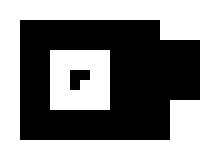
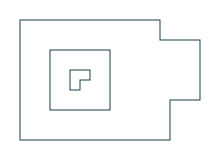
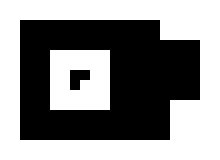
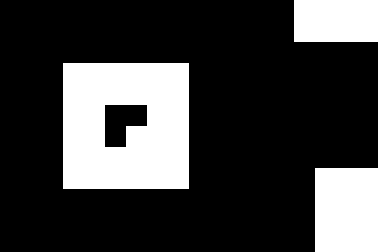
Use the self-authored CC0 package below as a reproducible handoff example. The source PNG is 220 x 160 px; the traced artwork bounds are 180 x 120 px. Threshold is 128, invert false, denoise 0, reduceNodes false. With artwork width set to 100 mm, the resulting height is 200/3 mm, serialized as 66.666666667.
The DXF export is AC1015, INSUNITS 4 for millimeters, with three closed LWPOLYLINE entities, 18 vertices, on layer 0: an 8-vertex outer contour with a right-hand stepped extension, a 4-vertex rectangular hole, and a 6-vertex nested separate L-shaped island. The SVG y-down versus DXF y-up transform preserves appearance with no reflection. The source and binary are identical because the source is already binary.
One caveat: the L-shaped island is loose and not connected, so it is not a retained stencil. Treat it as a separate loose part unless you add bridges or a frame. Self-intersection is unchecked.
Download the whole handoff package or the individual files:
Counterexample: grayscale art is not a cut outline
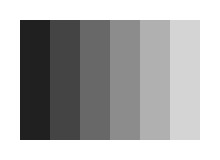
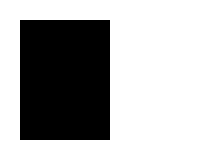
Six grayscale bands at 32, 68, 104, 140, 176, and 212 show what thresholding does to tonal artwork. At threshold 128, the first three bands merge into one black region and all tone variation is lost. That outline is not appropriate as a contour cutting instruction; it is a comparison artifact. No centerline or machine job is generated from it.
Download the comparison files:

Preserve size, holes, and orientation
Set the physical width once and confirm the height from the traced bounds. Keep holes as closed inner contours; do not fill them. Check that the SVG y-down to DXF y-up transform did not mirror the artwork; the sample uses a y-axis flip with no reflection. Open the receiver preview before manufacture and measure known dimensions with endpoint snaps. If the size is wrong, correct the artwork width or drawing units before cutting; do not scale at the laser.
Preview in the receiver before manufacture
LightBurn already lists SVG and DXF among its supported import formats, but that is a format statement, not proof that every sample imports cleanly. Open the file in the receiver, confirm contours are closed, holes are separate, the loose island behaves as intended, and dimensions match the manifest. Retain the source PNG, binary PNG, SVG, DXF, and manifest together so the receiver can compare pixels, paths, and measured bounds.
Source references and next steps
Official references:
Relevant next steps: