Inkscape Text on Path: Curve Editable Text Along a Path
Arrange already-approved editable text along one curve in Inkscape, keeping the wording and the curve editable for future changes, then hand a separate outlined copy only when the receiver needs geometry without fonts. This is the opposite job from turning text into outlines, which is covered by the sibling guide.
Create a baseline path, write plain text on the canvas, set its alignment before placing it, select the path and text with the Selector tool, then apply Text > Put on Path. After that the wording, style and curve shape all remain editable; keep the master by hiding the path rather than deleting it, and produce a separate outlined copy only when the receiver needs geometry without fonts.
Build the curve and place the text
Create one path that will serve as the baseline. You can build it from shape tools and Boolean operations, or draw it with a path tool. Write the text directly on the canvas rather than flowing it into a text frame, because this layout works with plain point text.
Set the text alignment before you apply the command: left, right, or centered on the middle of the path. Then, with the Selector tool, select the path and the text together and choose Text > Put on Path from the menu. The text immediately follows the curve.
The official reference for this sequence is the Inkscape Beginners' Guide page Putting Text on a Path.
What stays editable after placement
The result is not frozen. You can still edit the wording, restyle the characters, and reshape the path by moving it, adding nodes, or deleting nodes; the text adjusts to the new curve. By default the path now represents the text baseline, so vertical kerning moves the text up or down in relation to that curve rather than shifting it on a straight line.
Keep the master and prepare the handoff copy
If you delete the path, the text has nothing to follow and reverts to its previous straight shape. To keep the layout while removing the visible curve, leave the path element in place and remove its fill and its stroke. The table below compares the two choices.
Keep the editable master for future changes. Produce an outlined copy only when the receiver needs geometry without depending on a font, and check that copy before handoff. The full conversion from editable text to glyph outlines, including keeping counters, is the subject of the sibling guide Inkscape Text to Path.
| Choice | What happens to the text | Path and layout after the action |
|---|---|---|
| Hide with fill and stroke removed | Text still follows the path | Path element remains; layout is preserved |
| Delete the path | Text reverts to its previous straight shape | No path element; layout is not preserved |
Engineering fixtures, not Inkscape output
The sample files below are hand-authored engineering documents, not exports produced by Inkscape. They record what this page describes so you can compare file structure and measurements. A viewer that substitutes another font will change the drawn letter shapes and the exact centered offset.
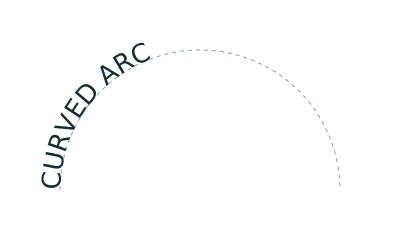
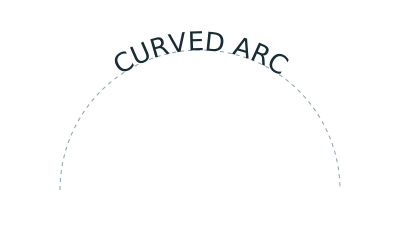
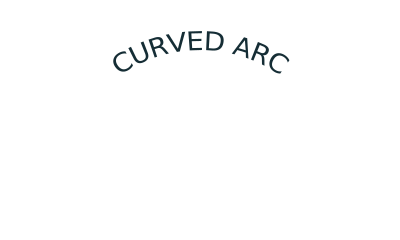
The editable master uses a semicircular baseline of radius 140 user units from (60, 190) to (340, 190), with an analytic length of 439.82 user units. The word CURVED ARC is set at 26 user units in DejaVu Sans with no kerning; its advance width is 171.75 user units, so a centered placement starts about 134.03 user units along the arc with those metrics. These are SVG user units and assert no physical size.
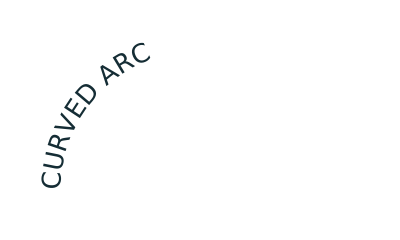
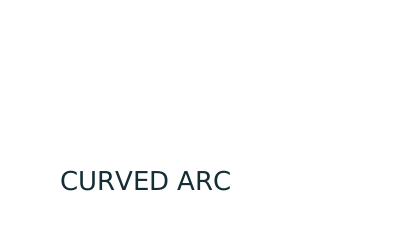
In the hidden-baseline file the path element and the textPath reference remain, so the layout matches the master and only the curve is invisible. In the deleted-baseline file there is no path element and no textPath, modeling the documented outcome where the text reverts to a straight shape.
The outlined handover copy has no text element and no font reference, only 13 closed contours and 1233 vertices using M/L/Z path commands.
What this project does and does not do
Editable text-on-path SVG files are outside the strict converter subset. A parse run on these fixtures reports 0 convertible entities for the editable files, because they contain a text element and the arc baseline; the outlined handover copy yields 13 LWPOLYLINE entities and passes the strict subset. The parser reads the unitless 400x240 root size as px and maps it to about 105.83 x 63.5 mm at 96 dpi, but the fixture itself asserts no physical size, so confirm scale in the receiving tool.
TraceDXF browser tools do not place text on paths and do not convert SVG text elements; its raster tracing returns filled outlines and never center lines or text layout. The strict SVG to DXF path accepts only M/L/H/V/Z geometry. No compatibility with every font, curve, editor or machine, and no machine power or speed setting, is claimed. If you have finished geometry already inside the subset, the SVG to DXF converter is the entry point.